

Getting Specific MCP Server Details
Using HasMCP UI
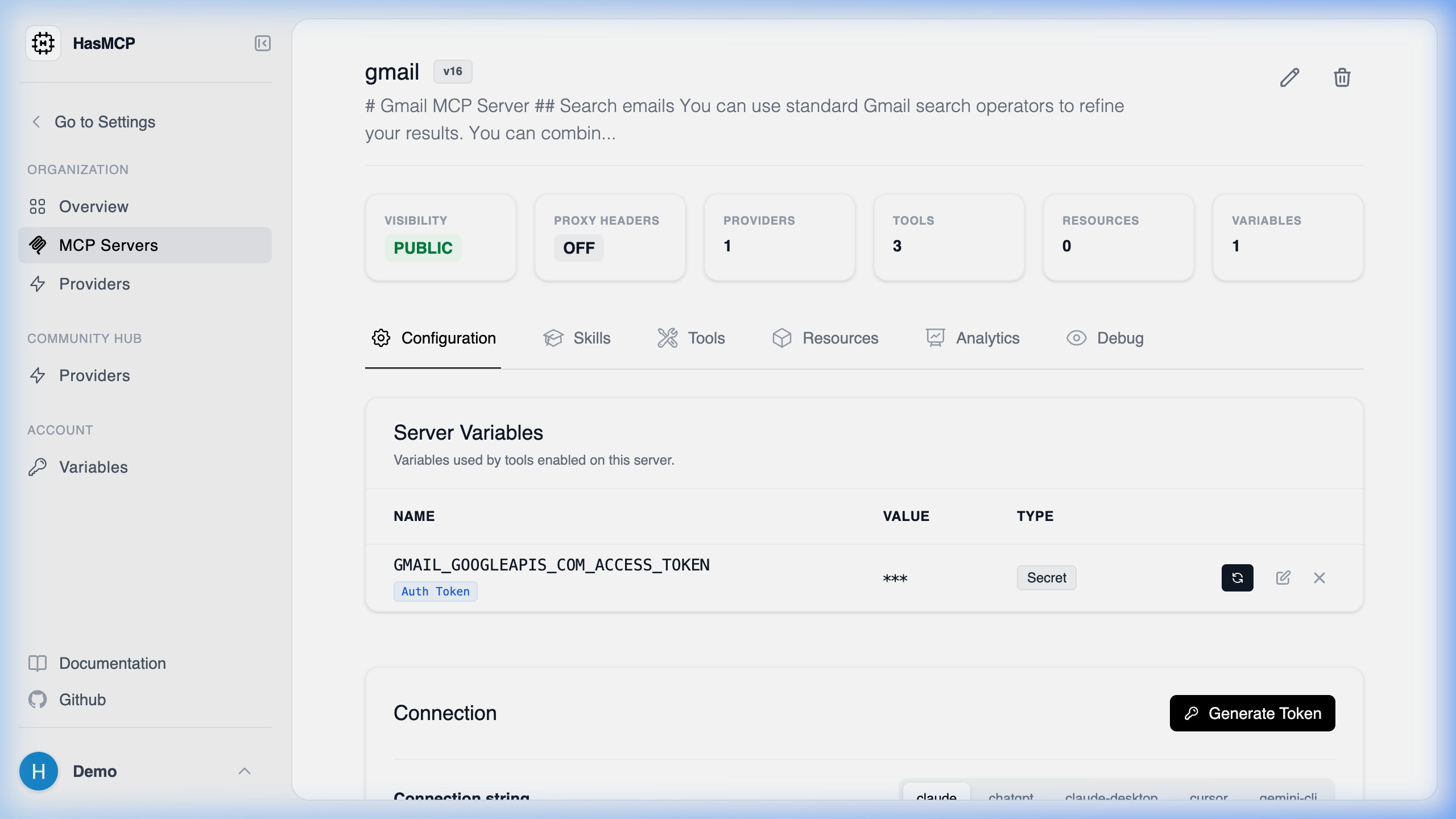
- Navigate to the Servers list.
- Click on the card or row of the server you wish to inspect.
- The dashboard will display the server’s full configuration, including its assigned providers, connected endpoints, and active prompts.
Using REST API
To retrieve the full details of a specific MCP server programmatically, you must use its unique alphanumeric ID and make a queryingGET request to the HasMCP Manager API.
Step-by-Step
- Obtain the Server ID: Find the 11-character ID of the server (e.g.,
kSuB9Gf6aD4), usually retrieved from theGET /serverslist endpoint. - Make the API Call: Send a
GETrequest to/servers/{id}.
Example Request
200 OK status with a GetServerResponse object. This object contains a single server property with all nested configurations, providers, resources, and prompts fully populated.