

Deleting an MCP Server
Using HasMCP UI
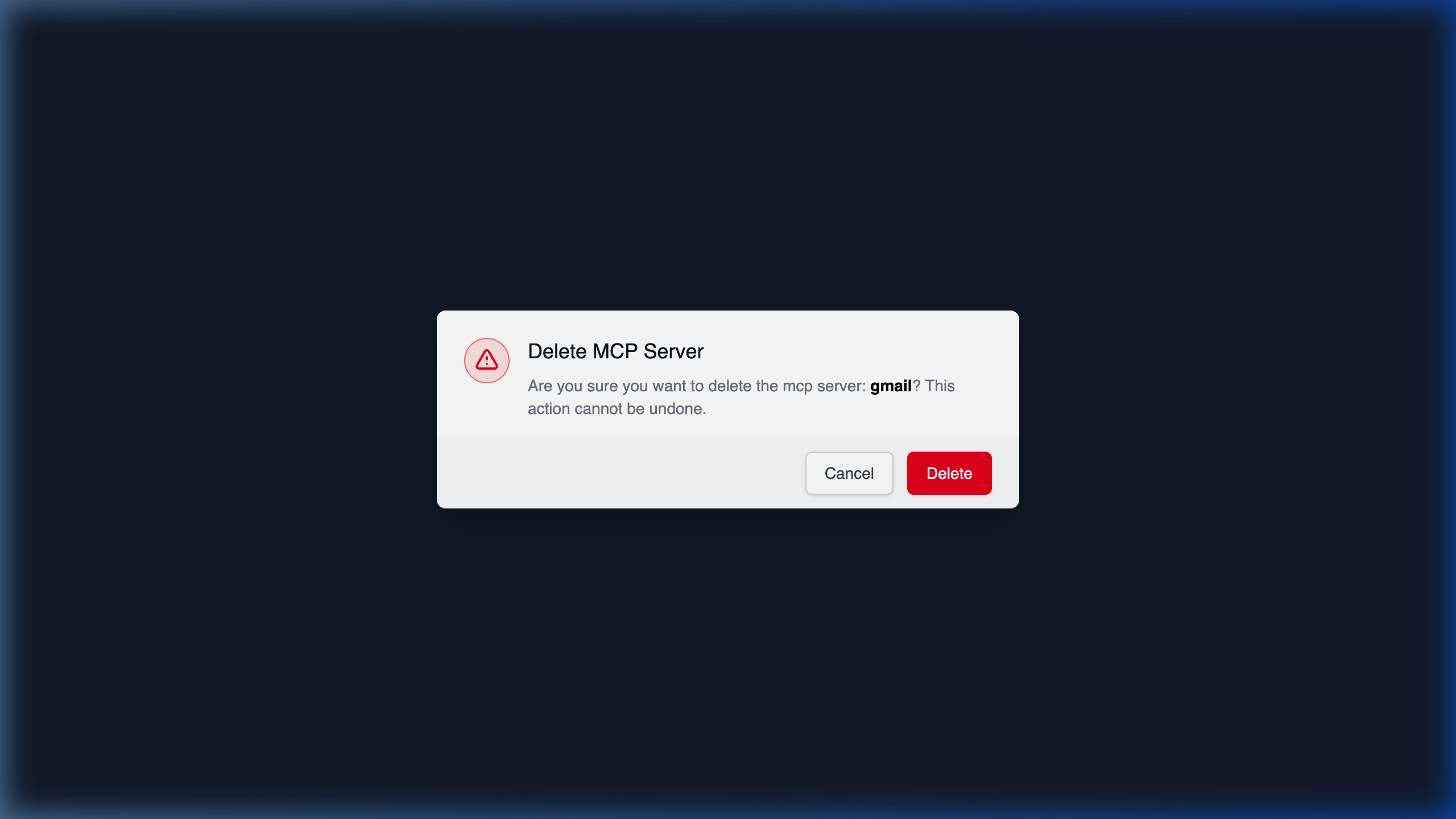
- Open the specific server’s detail view from the Servers page.
- Click the red Delete button in the top right.
- Review the confirmation modal to understand the consequences.
- Confirm the deletion. This action is irreversible.
Using REST API
When an MCP server is no longer needed, you can cleanly tear it down via the API. Doing this will remove the server’s configuration and disassociate it from any existing providers or prompts.The Deletion Route
DELETE /servers/{id}
How to Delete a Server
- Identify the 11-character
idof the server you wish to remove. - Make an authenticated
DELETErequest targeting that specific server.
Example Request
204 No Content response, indicating that the server no longer exists.