

Creating a Provider Resource
Using HasMCP UI
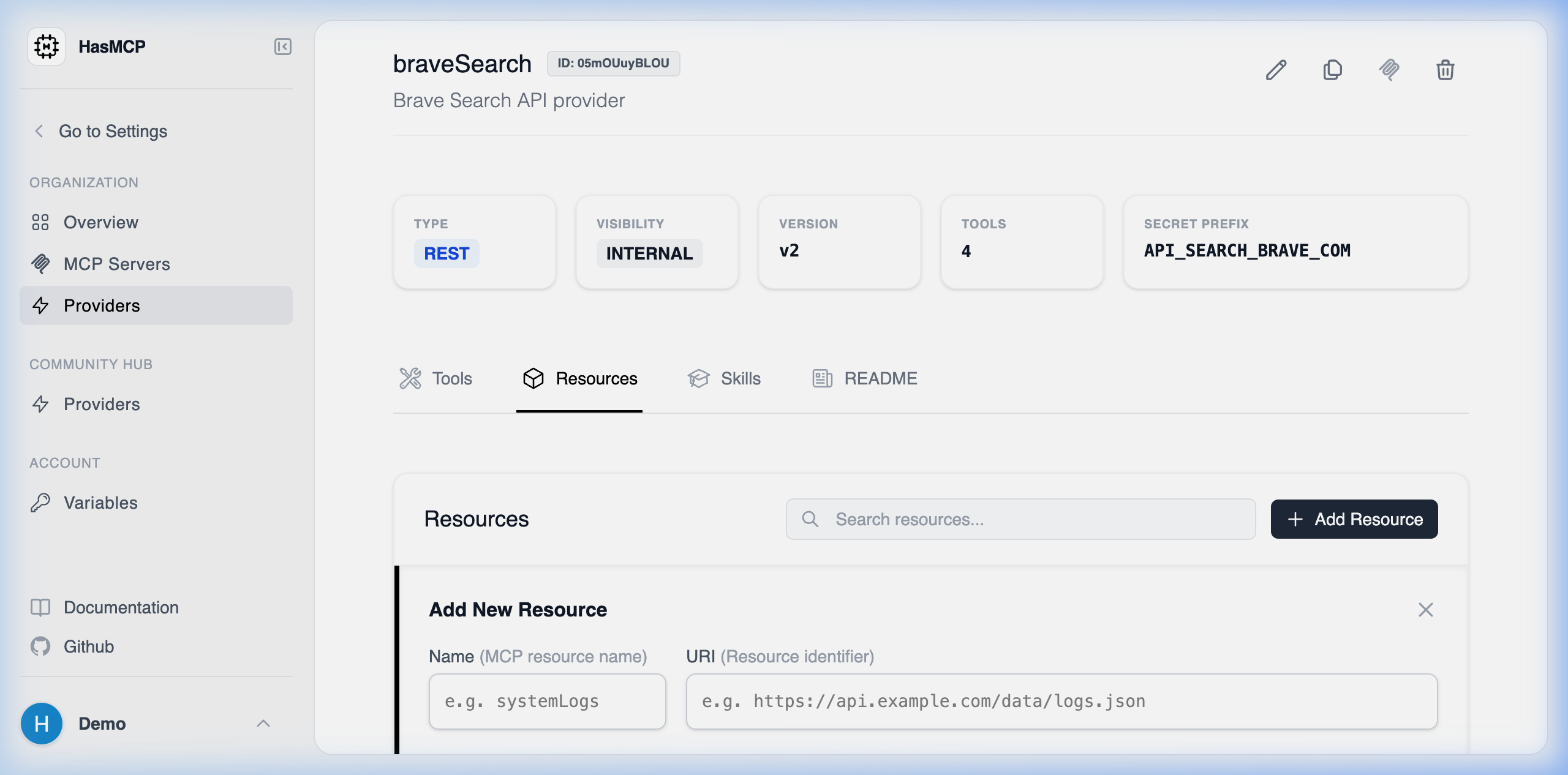
- Navigate to the specific Provider Details page.
- Select the Resources tab.
- Click the Add Resource button.
- Input the
name(a unique URI-like string identifying the resource, e.g.,https://api.example.com/logs/system.log), themimeType(e.g.,text/plainorapplication/json), and providing an optionaldescription. - Map the
executionpath the server will call to retrieve this data. - Click Create to bind the resource to the provider catalog.
Using REST API
A Resource in MCP is typically used for injecting static files, database schemas, or distinct read-only data blobs into an agent’s context.The API Endpoint
To programmatically declare a resource, youPOST a ProviderResourceCreate object to the provider’s nested resources path.
POST /providers/{providerId}/resources
JSON Payload Requirements
Your payload requires aresource object containing:
name(string): A short contextual name for the resource (e.g.,Error Logs).uri(string): The standardhttps://REST URL where the resource data can be fetched (e.g.,https://api.example.com/v1/system/logs/error).mimeType(string): The standard MIME format of the data returned by this endpoint.description(string, optional): A brief explanation of the data blob.