

Adding a New Tool to a Provider
Using HasMCP UI
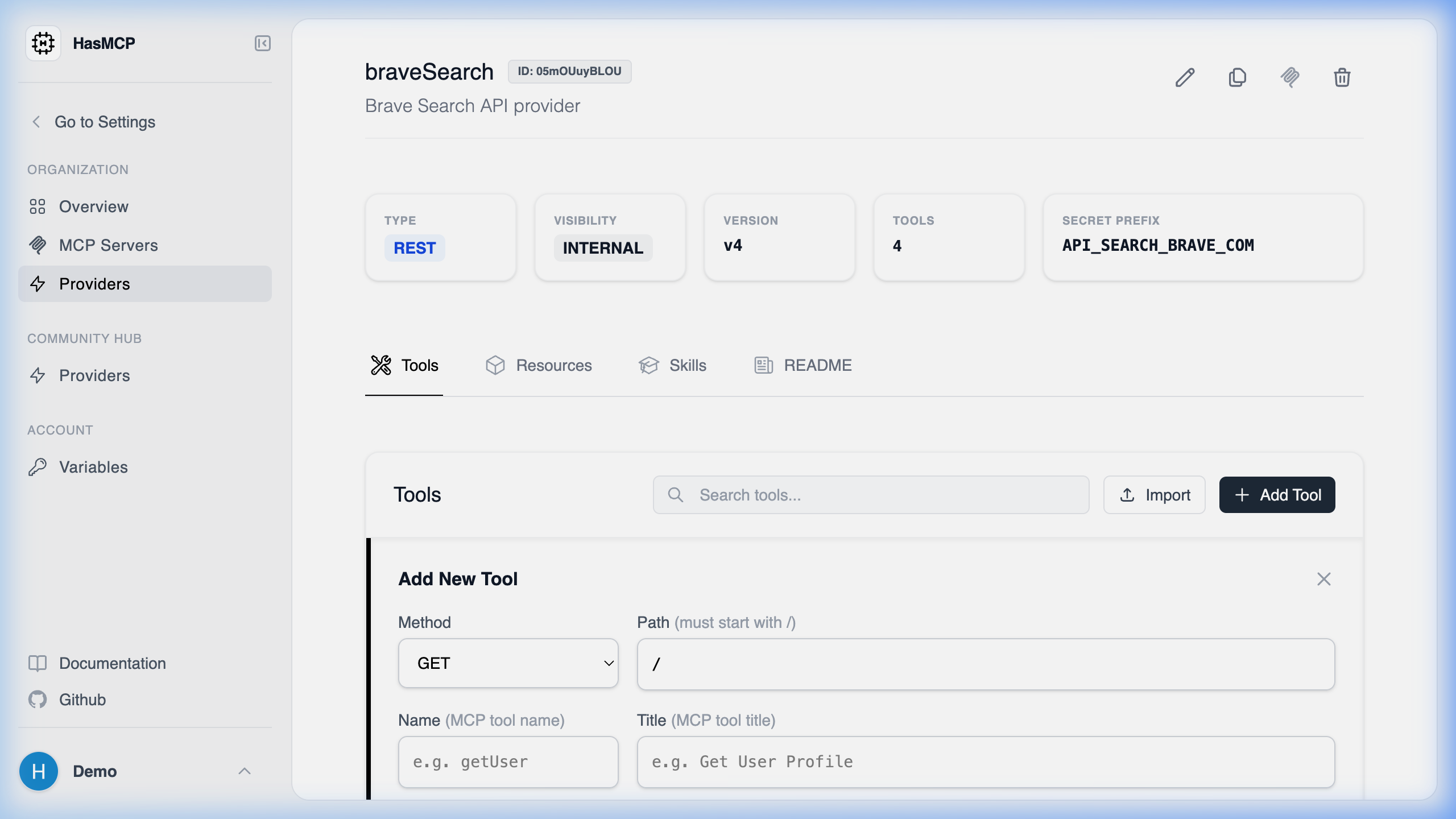
- Navigate to the specific Provider Details page.
- In the “Tools” tab or section, click the Add Tool button.
- Define the tool’s
name,description, and construct itsinputSchema(JSON Schema format) that the LLM will use to invoke it. - Specify the execution path (e.g.,
/v1/users/{user_id}). - Click Create to bind the new capability to the provider.
Using REST API
To declare a new tool programmatically so that your MCP servers can leverage it, you post aProviderToolCreate JSON object to a specific provider’s tool collection.
The Endpoint
POST /providers/{providerId}/tools
(Note: Replace {providerId} with the 11-character ID of the parent provider).
JSON Payload Requirements
Your payload must include atool object containing:
name(string): A distinct, programmatic name for the tool (e.g.,get_user_billing).description(string): Precise instructions to the LLM explaining exactly what this tool does and when to call it.method(string): The HTTP method (e.g.,GET,POST).path(string): The execution path routing logic.reqBodyJSONSchema(object): JSON Schema for the body parameters.queryArgsJSONSchema(object): JSON Schema for the query arguments.pathArgsJSONSchema(object): JSON Schema for the path arguments.