Unlike previous tutorials, we will not rely entirely on the LLM’s intelligence
to handle data formatting, and will request/response interceptors to optimize
token usage and handle complex scenarios like base64 encoding.
Prerequisites
You’ll need the following to get started:HasMCP Account
A HasMCP Cloud or Self-hosted account.
Google Cloud Platform
A Google Cloud Platform (GCP) account to obtain OAuth2 credentials.
Step 1: Obtain Google OAuth2 Credentials
To secure the connection between HasMCP and your Gmail account, you must create an OAuth2 client ID.1
Create a Project:
- Go to the Google Cloud Console.
- Create a new project named “HasMCP Gmail”.
2
Enable Gmail API:
- Navigate to APIs & Services > Library.
- Search for “Gmail API” and click Enable.
3
Configure Consent Screen:
- Go to APIs & Services > OAuth consent screen.
- Select External (unless using a Workspace org) and click Create.
- Enter an App Name (e.g., “HasMCP”) and Support Email.
- Important: Add the following Scopes:
https://www.googleapis.com/auth/gmail.readonlyhttps://www.googleapis.com/auth/gmail.compose
- Add your own email address as a Test User.
4
Create Credentials:
- Go to APIs & Services > Credentials.
- Click Create Credentials > OAuth client ID.
- Select Web application.
- Authorized Redirect URIs: Enter
https://app.hasmcp.com/oauth2/callback(Confirm this URI in your HasMCP Provider settings). - Click Create.
- Copy the Client ID and Client Secret.
Step 2: Configure the Gmail Provider
1
In HasMCP, go to Providers > Add Provider.
2
Configure the settings:
- Name:
gmail - Provider Type:
REST - Base URL:
https://www.googleapis.com/gmail/v1 - Authentication: Toggle on OAuth2.
3
Enter the OAuth details:
- Authorization URL:
https://accounts.google.com/o/oauth2/auth - Token URL:
https://oauth2.googleapis.com/token - Client ID: Paste your Client ID
- Client Secret: Paste your Client Secret
4
Click Save Changes.
Step 3: Define Tools
We will create three tools. We will define the API endpoints and use interceptors to optimize the response and transform the request for complex scenarios.Tool 1: Search Emails
- Method:
GET - Path:
/users/me/messages - Name:
searchEmails - Description:
Search for emails. Use 'q' for query (e.g., 'from:alice'). - Query Arguments:
q(Required): The search query string.
- Headers:
AuthorizationBearer ${GOOGLEAPIS_COM_GMAIL_ACCESS_TOKEN} - Scopes:
https://www.googleapis.com/auth/gmail.readonly
Tool 2: Read Email
- Method:
GET - Path:
/users/me/messages/{id} - Name:
readEmail - Description:
Read email message - Headers:
AuthorizationBearer ${GOOGLEAPIS_COM_GMAIL_ACCESS_TOKEN} - Path Variables:
id(Auto-detected): The message ID.
- Scopes:
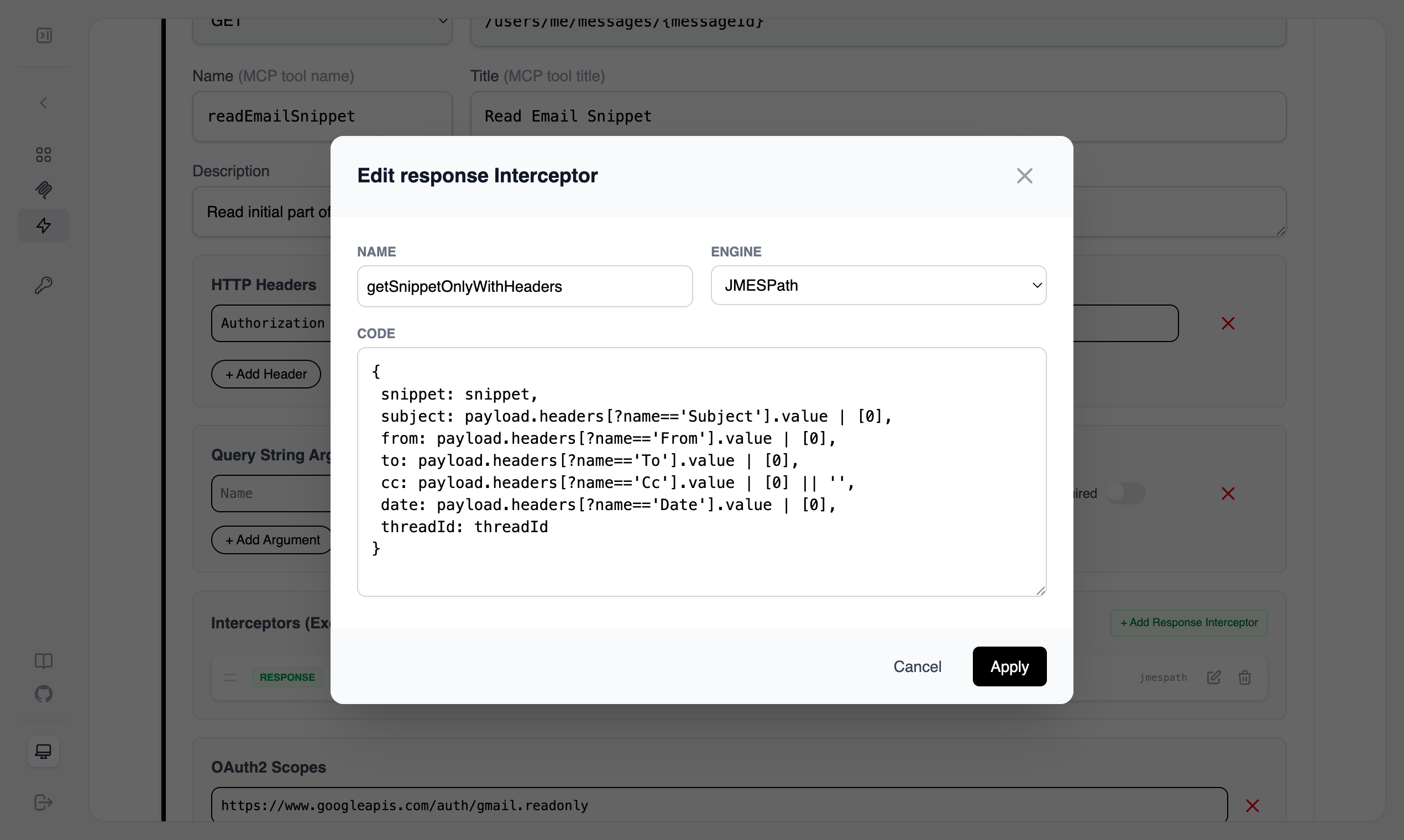
https://www.googleapis.com/auth/gmail.readonly - Response Interceptors: This step is optional but highly recommended for optimizing MCP tool token usages. In this example Gmail API returns a lot of headers we cherrypick the ones that we need only.
Tool 3: Send Email
- Method:
POST - Path:
/users/me/messages/send - Name:
sendEmail - Description:
Send an email. - Body: Enter the following JSON Payload.
-
Scopes:
https://www.googleapis.com/auth/gmail.compose -
Interceptors:
For sending email, the input has to be converted into a base64 format in a specific order. I used a GoJa (JavaScript) interceptor to get inputs like a real REST API then converted it to the desired format before sending to the Gmail server. Unfortunately, the GoJa interceptor does not have native support for base64, for that reason the example code snippet also includes a
btoafunction.
Add Request Interceptor button, on the popup window as name use gmailSendEmailMapper and the following code snippet: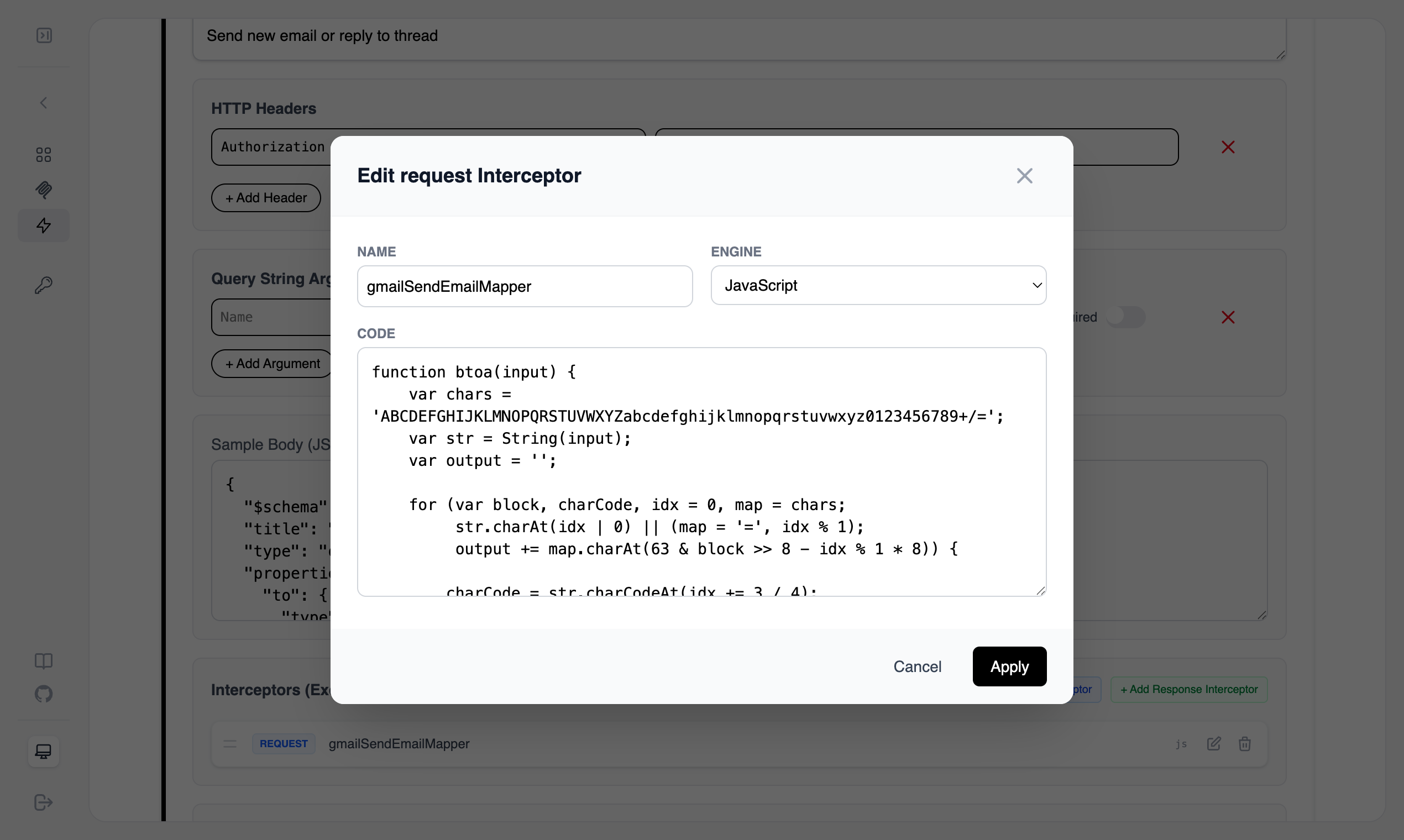
Step 4: Generate and Authenticate
1
Go to the Providers list.
2
Click the Generate MCP Server icon next to
gmail.3
On the Server page, click Generate Token.
4
Important: A popup will appear asking you to log in to Google. Grant the
requested permissions.
5
Once authenticated, copy the Connection Address into your MCP client
configuration (e.g.,
claude_desktop_config.json).Step 5: Real-Time Observability
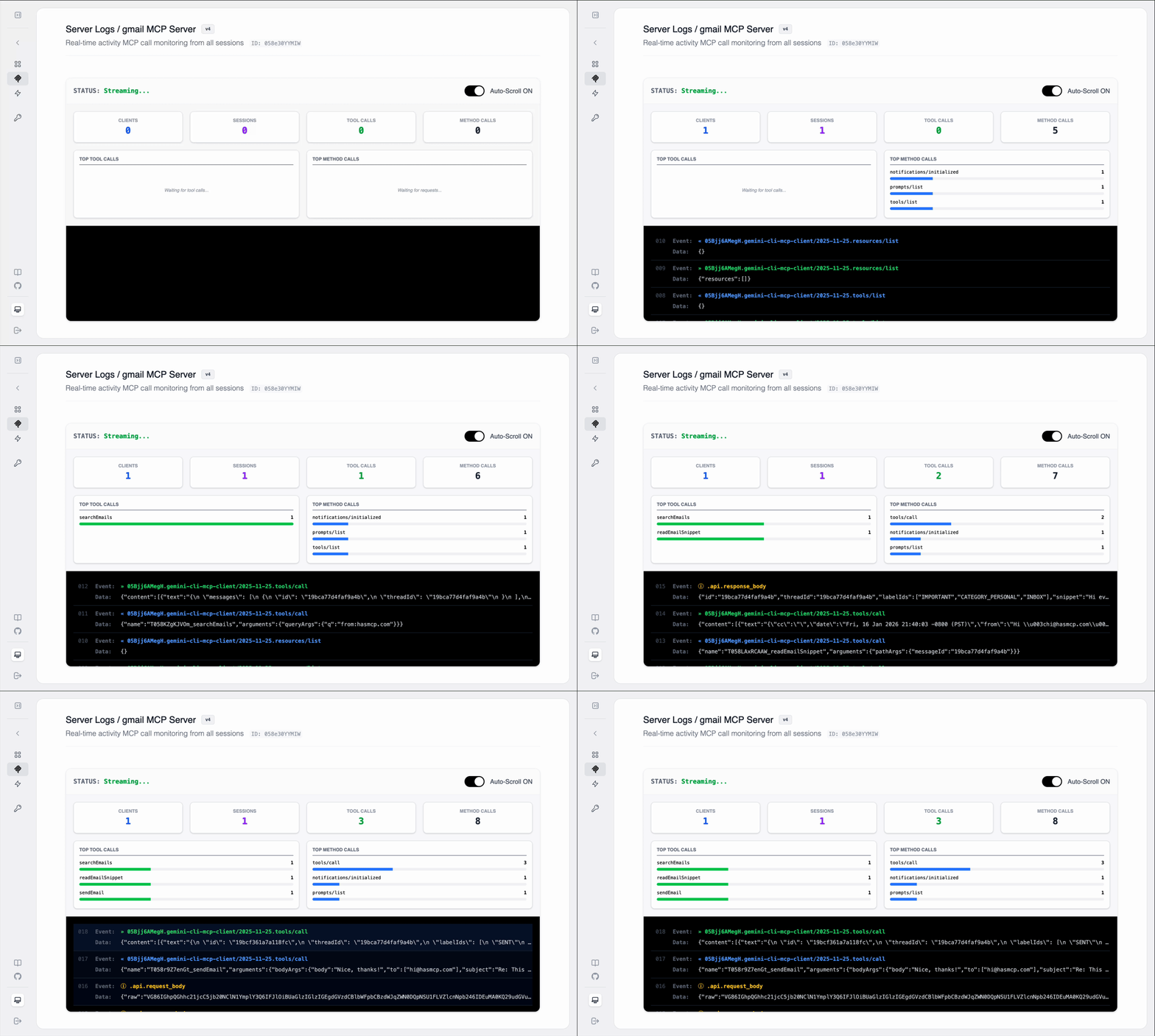
Since we are dealing with complex authentication and raw data formats, observability is critical to debugging.1
Open the Server Logs tab in HasMCP.
2
Ask your MCP Client: “Search for the last email from hasmcp.com.”
3
Watch the logs: - You will see the request hit
/users/me/messages with
q=from:hasmcp.com. - You will see the JSON response from Google listing
message IDs.4
Ask your MCP Client: “Send an email to me saying Hello.” - You will see
the Model attempt to construct the
raw base64 string.