

Connecting to Claude Web
You can connect your HasMCP remote MCP servers to the Claude.AI web application using the built-in Connectors feature. Once connected, Claude can call your tools and APIs directly from any conversation in the browser.Prerequisites
- A HasMCP account with at least one MCP server configured
- A Claude.AI account (Pro or Team plan required for custom connectors)
Setup Instructions
1
Generate a Server Token
In your HasMCP dashboard, navigate to your MCP Server and click Generate Token to create a secure access token. Copy the token — you will need it in the next step.
2
Open Claude Connectors Settings
In the Claude.AI web app, click your profile icon in the top-right corner and select Settings. Then click Connectors in the left sidebar.You will see a list of available connectors along with an Add custom connector button.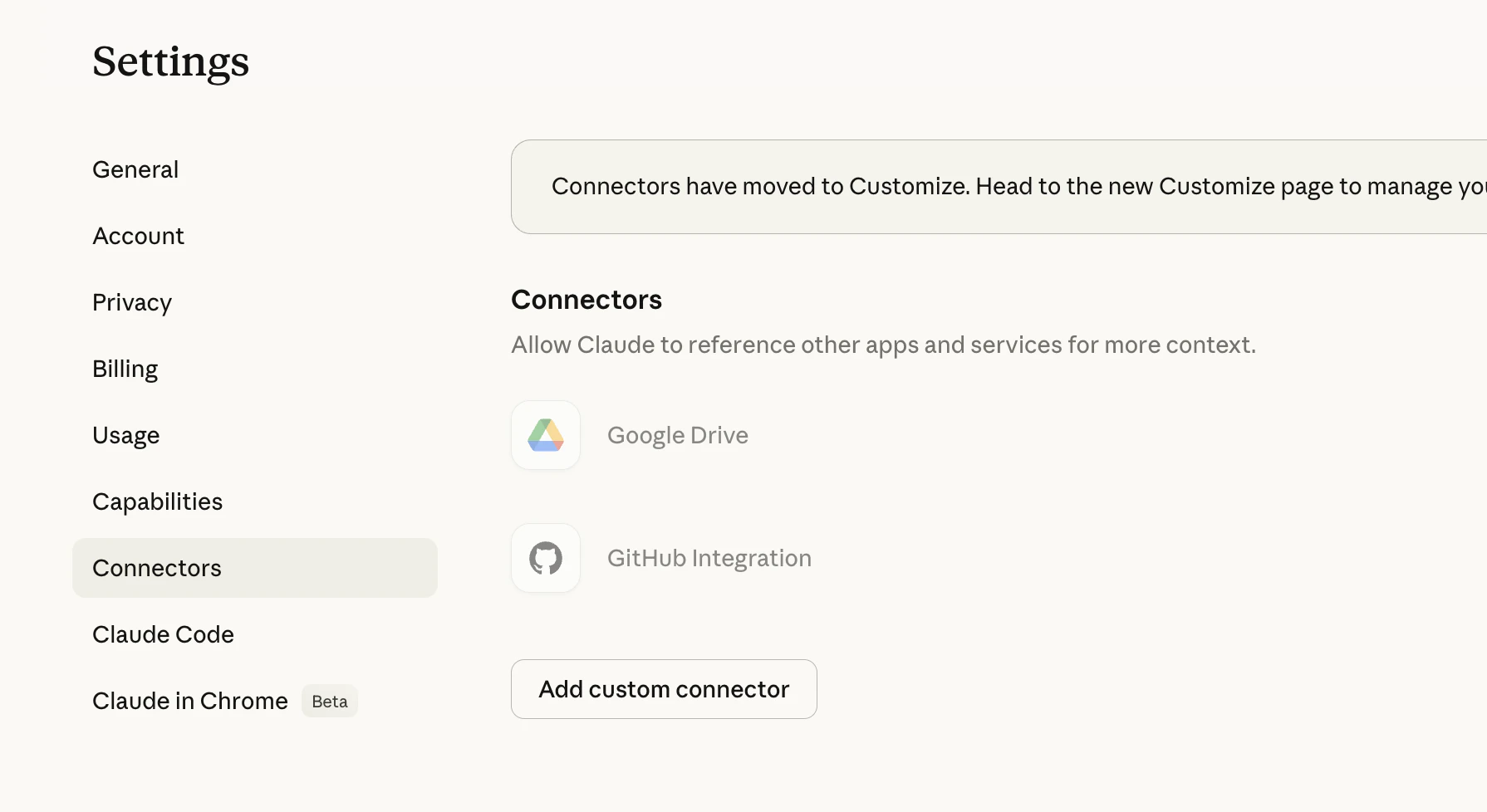
3
Add Your HasMCP Server as a Custom Connector
Click Add custom connector. In the dialog that appears, enter your HasMCP server URL with your token appended as a query parameter:Replace 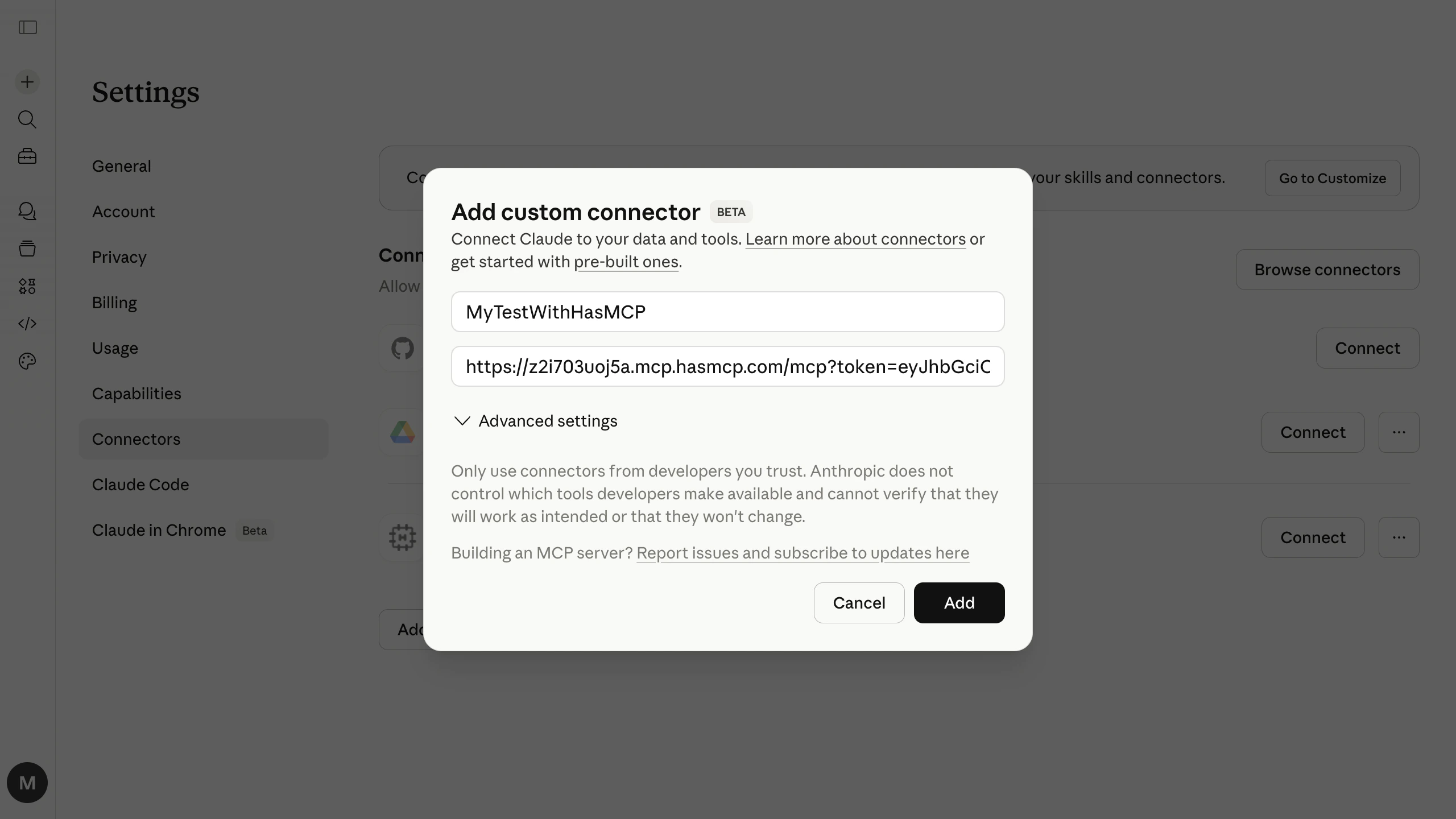
<server-subdomain> with your server’s subdomain and <YOUR_ACCESS_TOKEN> with the token you generated in Step 1.Why Use Query String Tokens?
The?token=<> query string approach is recommended for Claude.AI connectors because:
- Compatibility: It bypasses potential header-stripping issues in the Claude connector interface.
- Simplicity: You do not need to configure a separate API key authentication step.
- Security: The token is still validated by HasMCP before any tools are executed.
Troubleshooting
Invalid URL Format error
Invalid URL Format error
Ensure the URL includes the full subdomain and the
?token= query parameter. The URL must start with https://.Token Mismatch
Token Mismatch
Ensure there are no spaces or extra characters in the
?token= value. Regenerate the token in the HasMCP dashboard if needed.Connector not appearing
Connector not appearing
Custom connectors require a Claude Pro or Team subscription. Free accounts may not see the custom connector option.
Tools not showing in conversation
Tools not showing in conversation
After adding the connector, start a new conversation. Look for the tools icon in the message input area to confirm the server is connected and tools are available.